1. Your curriculum map, at a glance
This is home. Every subject you're enrolled in sits along the top as a progress pill — tap one to jump straight into it. You can switch the display language and the light/dark theme right from the top bar.
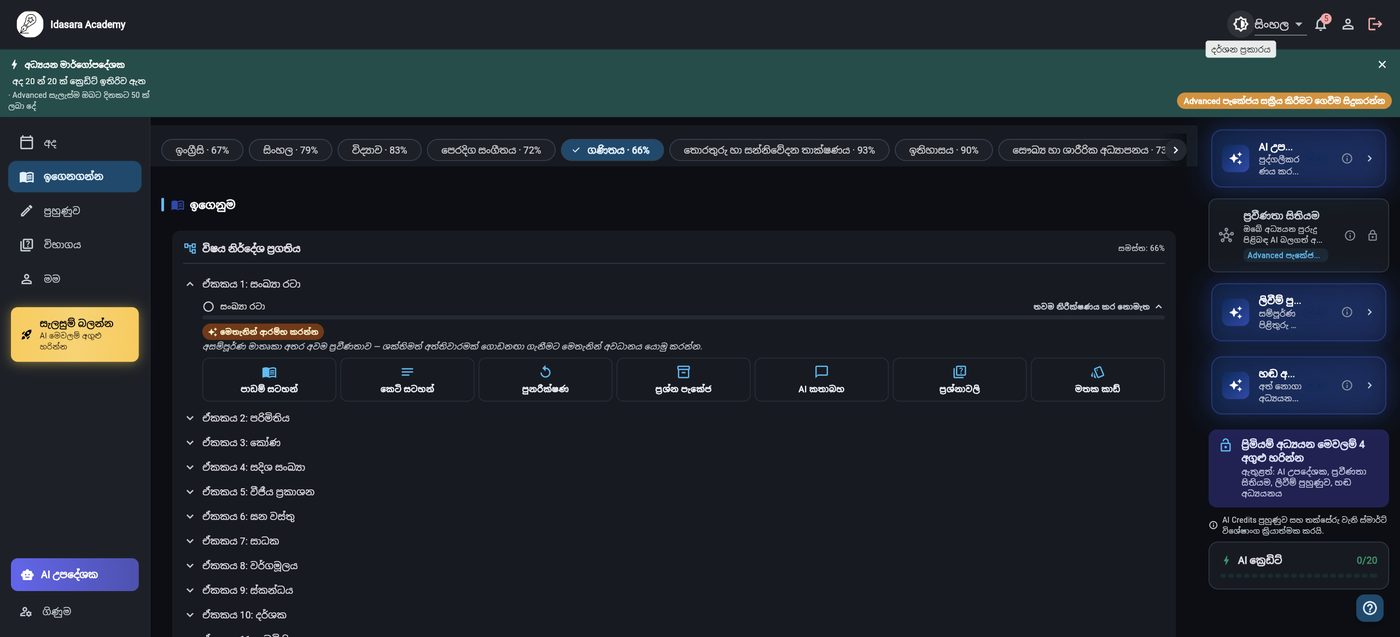
Home dashboard — curriculum map
Below the subject pills, each unit of the syllabus is listed with quick actions: short notes, revision, prompt packs, AI chat, and more.
2. Inside a lesson: notes, terms, and AI on the side
Every subject is organised into three terms, and every term into short notes, prompt packs, and revision questions.
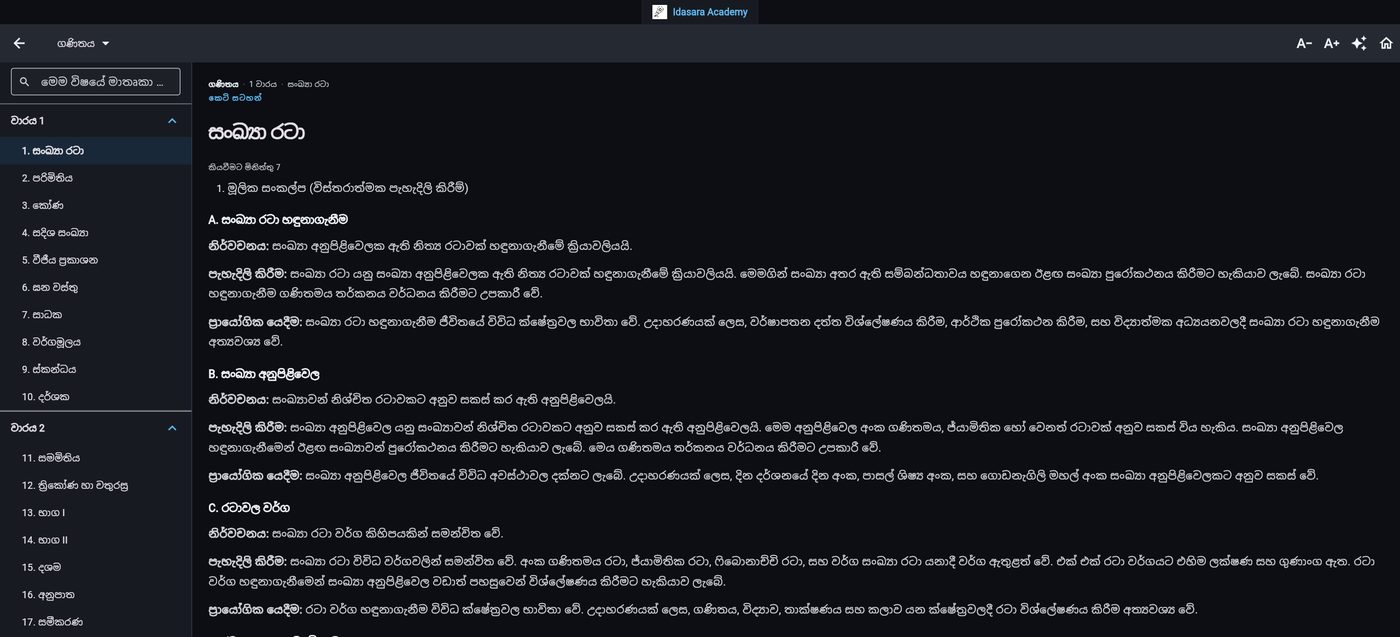
Short notes — term & unit navigation
Use the subject dropdown at the top to switch subjects instantly, and open the AI chat panel from the side whenever you need something explained on the spot.
3. Mistake Journal — turn wrong answers into strong topics
Open the Mistake Journal from the Practice tab.
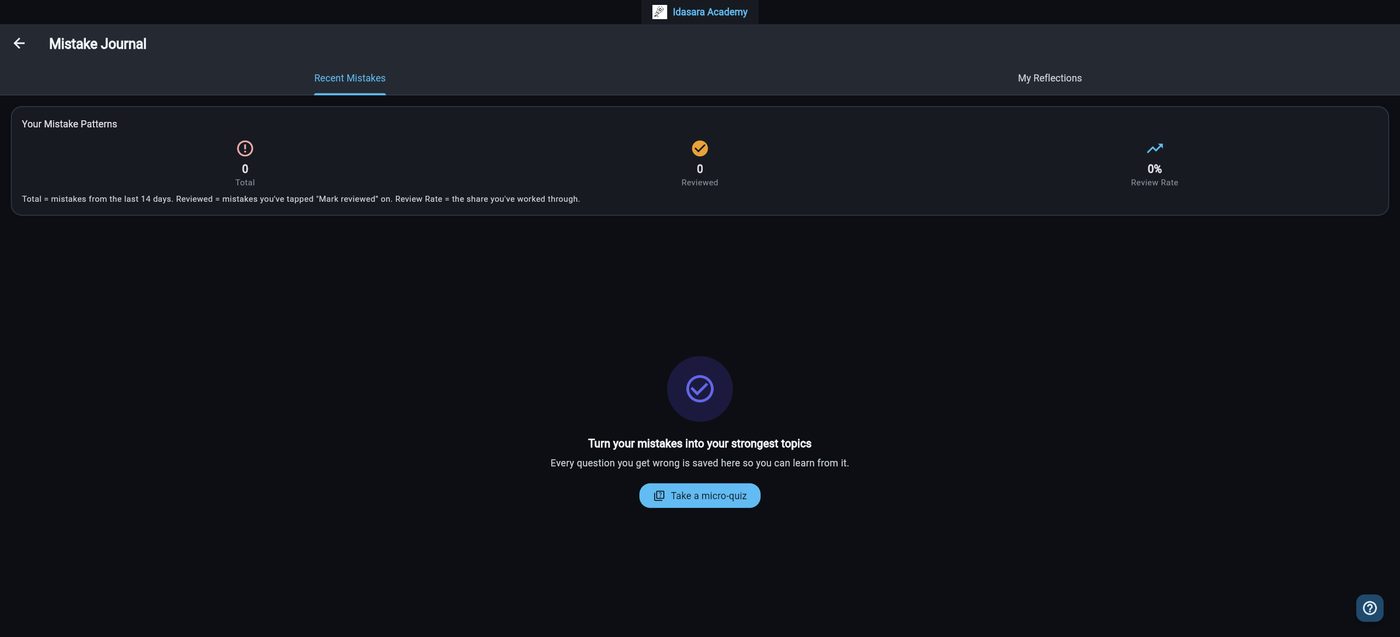
Mistake Journal — before you've made any mistakes yet
This is what a fresh Mistake Journal looks like. Once you start answering quizzes, every question you get wrong is logged here automatically, so you can review it later instead of losing track of it.
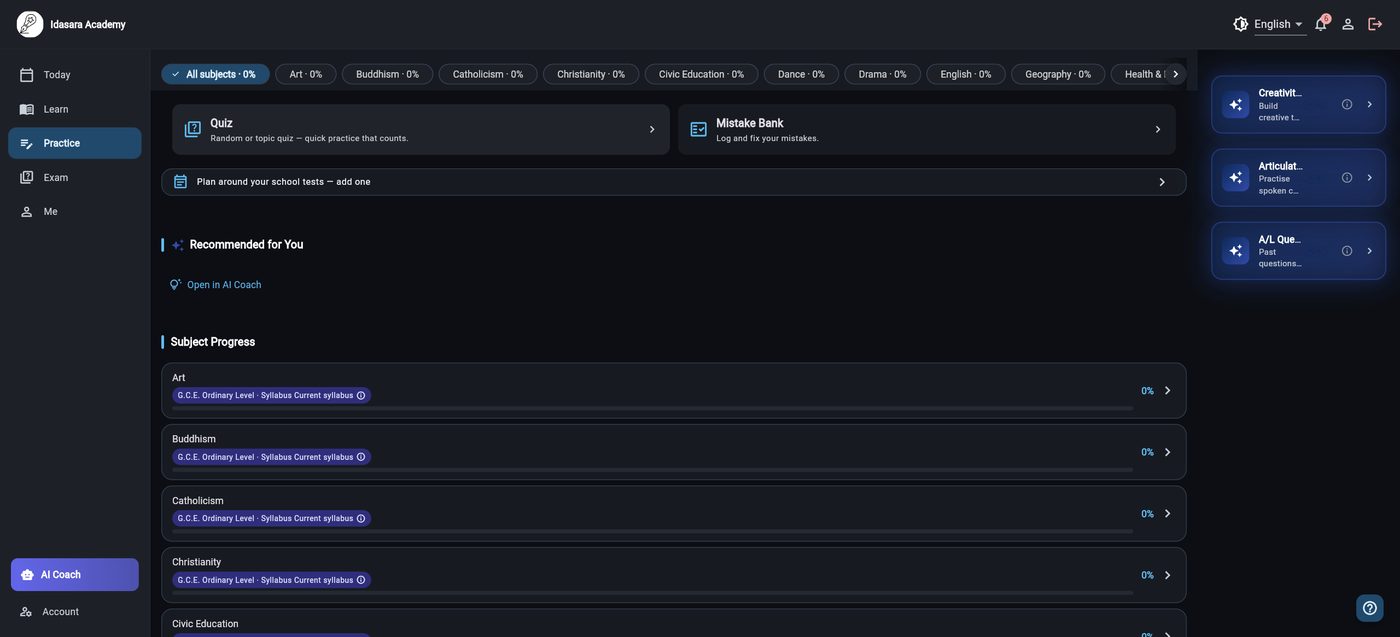
Practice tab — where the Mistake Bank lives
You can view your Mistake Bank straight from the Practice tab, alongside every other review tool.
4. The Practice tab is your toolbox
Below the subject filters sits every review tool you have.
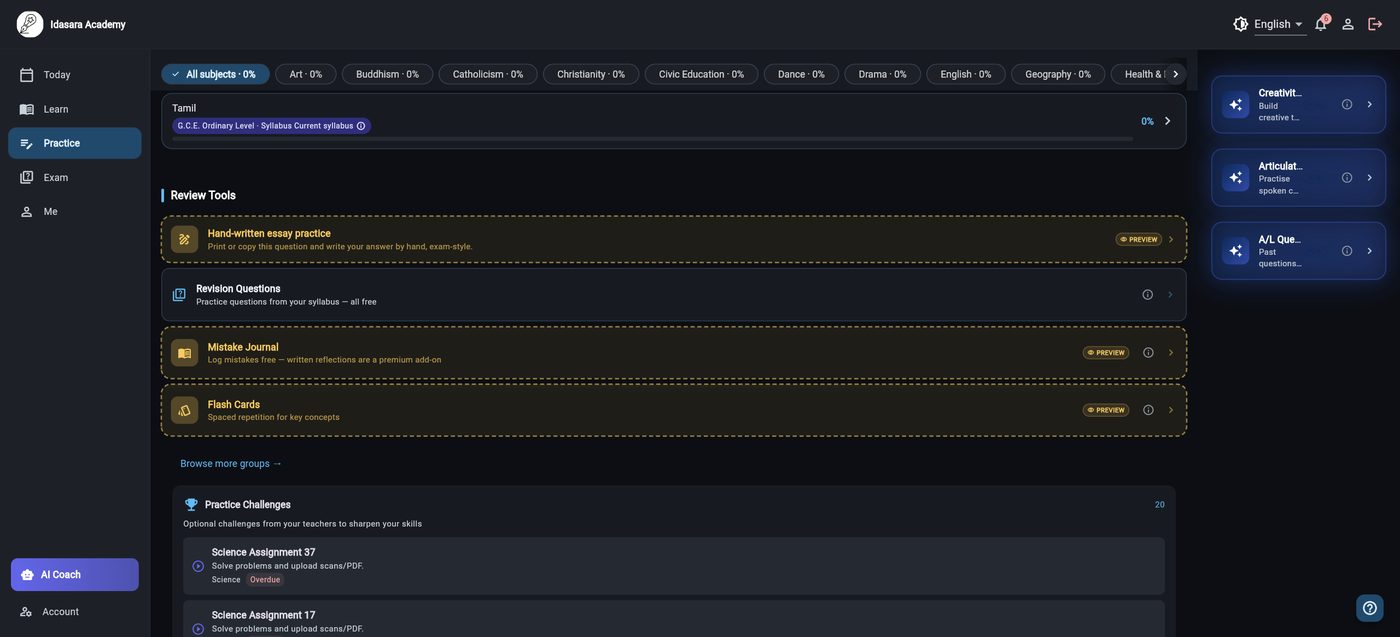
Practice tab — review tools
Revision questions, flash cards, teacher-set challenges, and the AI Practice Coach that targets your weak areas specifically.
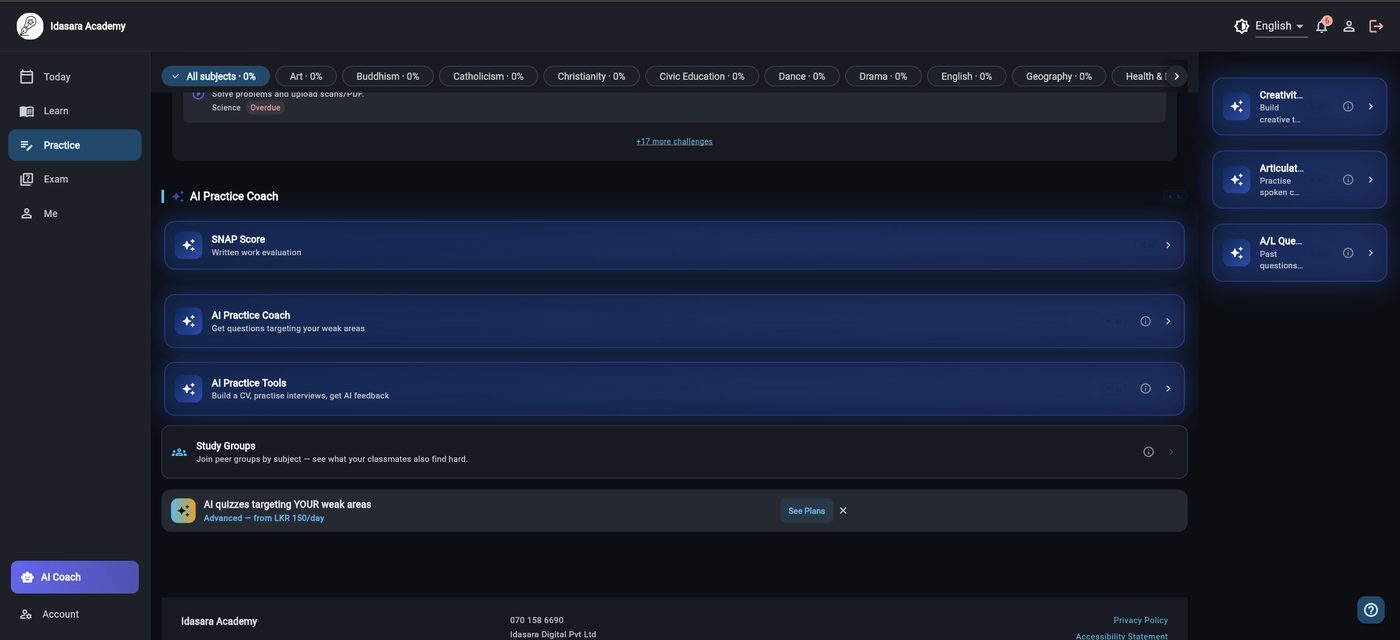
Practice tab — AI Practice Coach
The AI Practice Coach looks at where you're struggling and builds a practice set around it — not a generic quiz.
5. Practise handwriting like the real exam
From Practice → Hand-written essay practice.
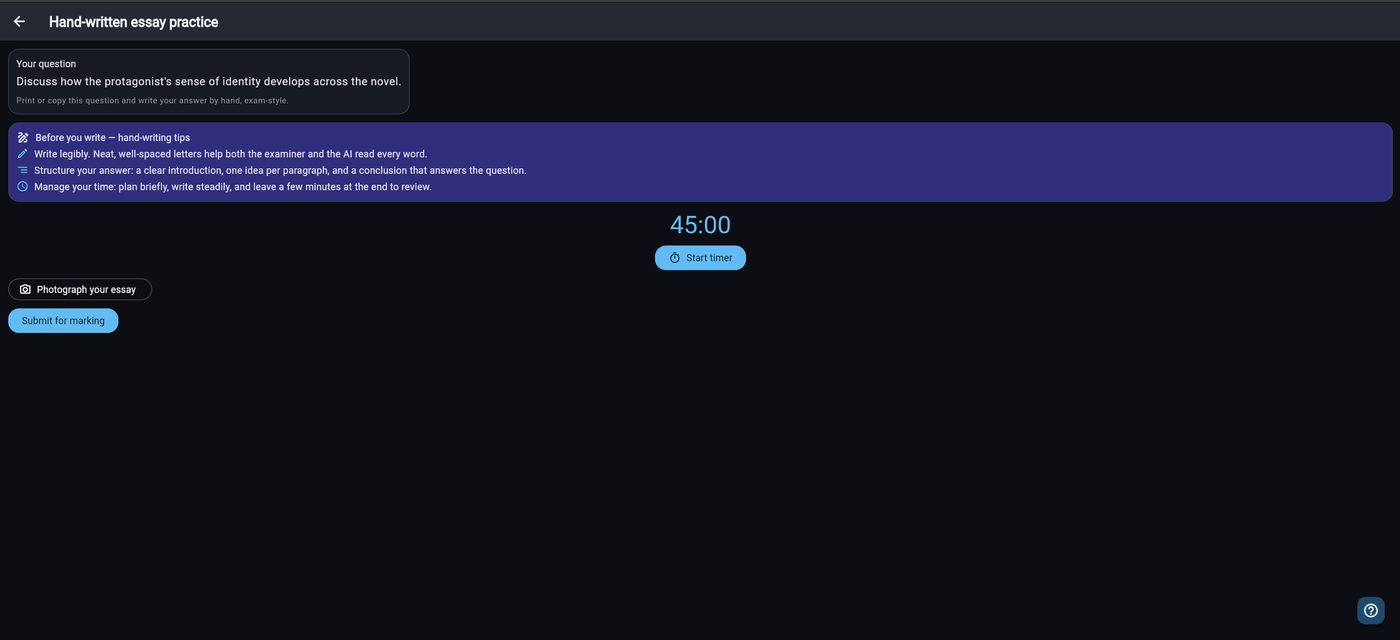
Hand-written essay practice
You get an exam-style question, a 45-minute timer, and reminders on legibility and structure — then photograph your answer to submit it for marking.
6. Snap & Score — instant AI marking
Write your question and answer on paper, then use Snap & Score (under AI Practice Tools) to photograph it.
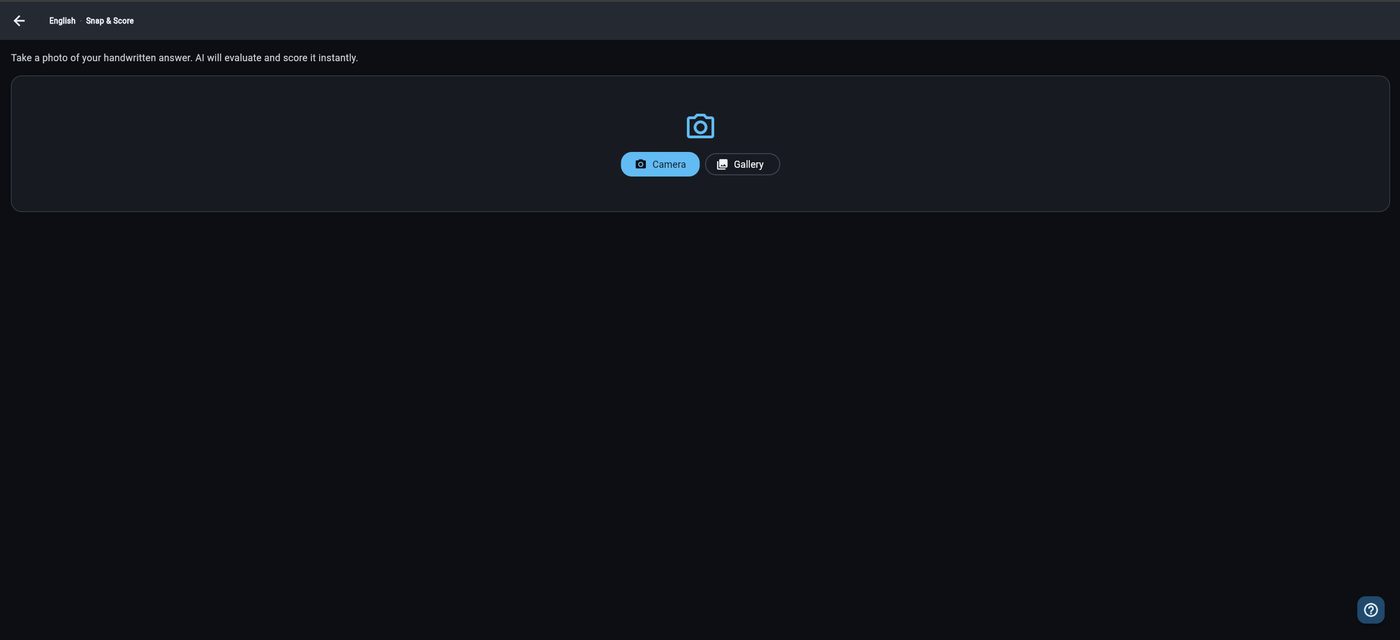
Snap & Score — upload a handwritten answer
The AI reads your handwriting and scores it instantly, so you know exactly how close your answer is to full marks.
7. Chat with your Student AI Agent
The AI Agent is a subject-aware tutor.
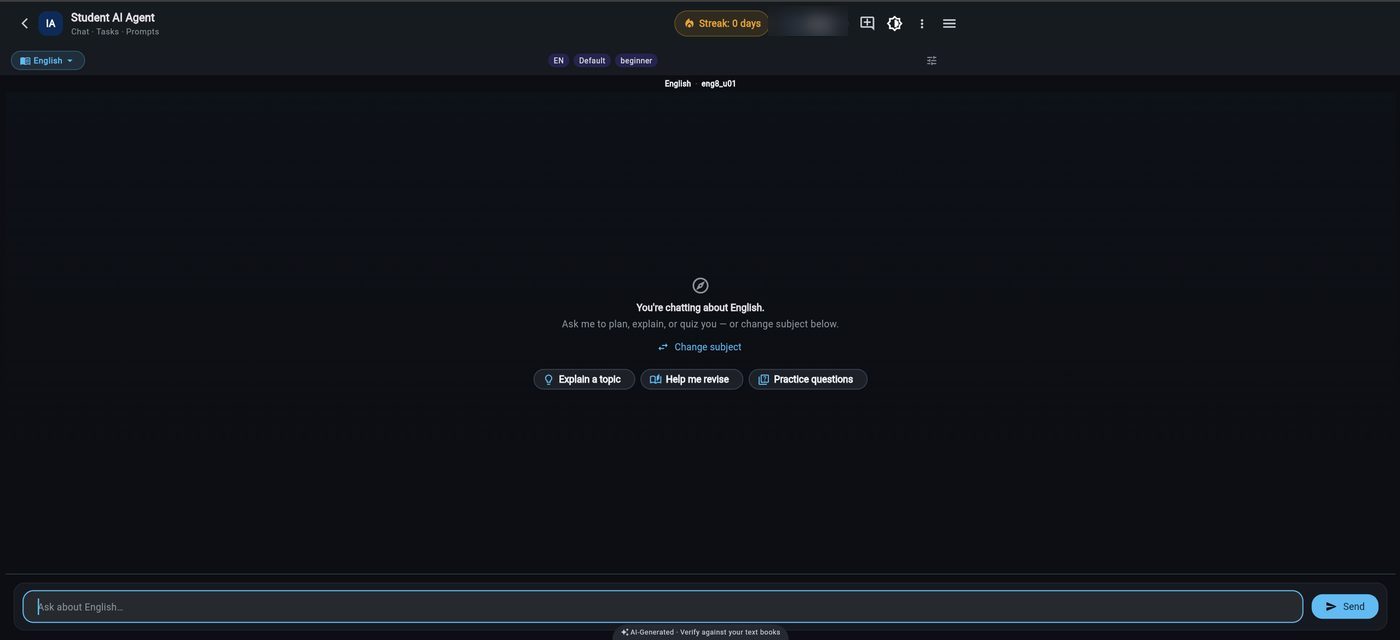
Student AI Agent — chat home
It knows which subject you're chatting about, and offers quick starting points: explain a topic, help you revise, or generate practice questions. You can select settings, start a new chat, view your history, and change subjects — all from here.
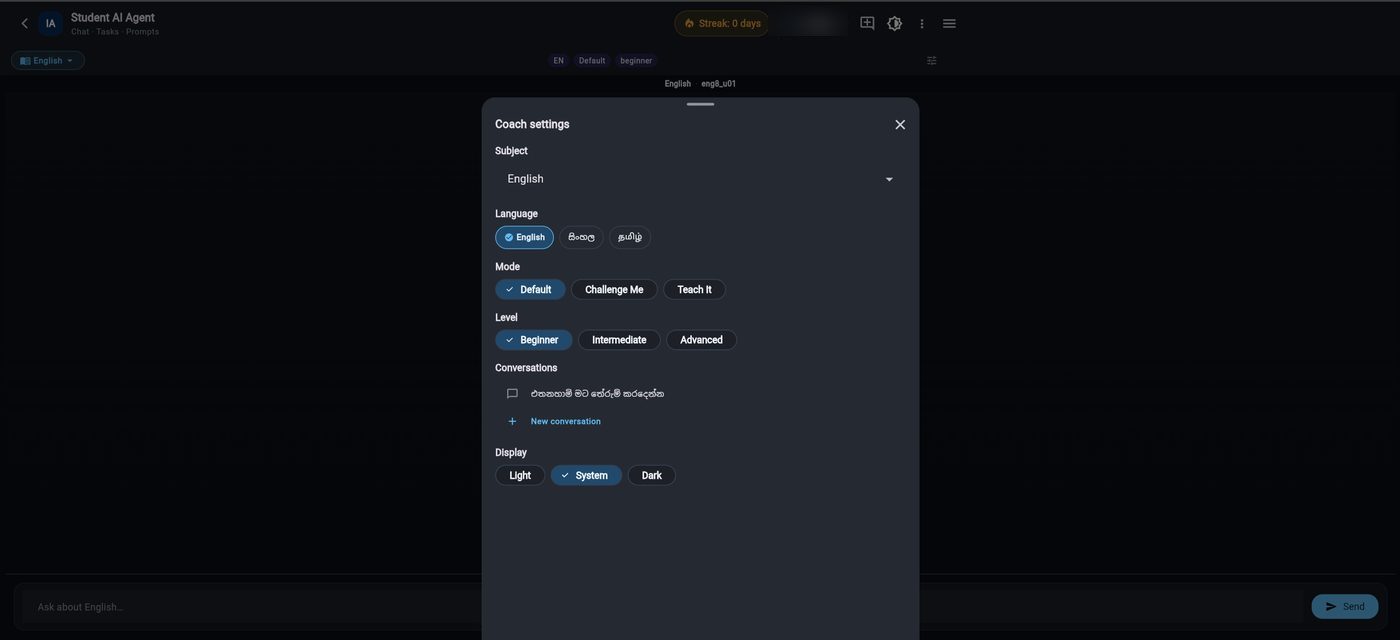
Student AI Agent — Coach settings
Tap the settings icon to open Coach settings — control the subject, the language the agent replies in, its teaching mode, your level, and your conversation history, all in one panel.